Table of Contents
STP Menu
·
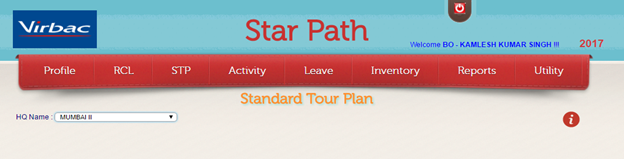
When
you click on STP Menu you get below screen.
·
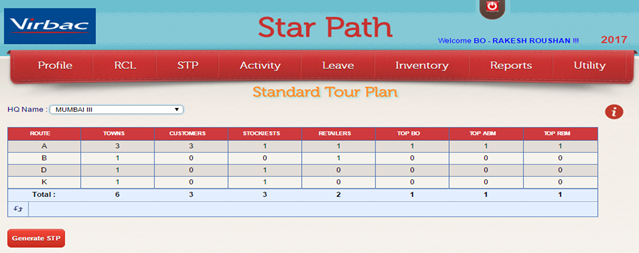
If your RCL is already Approved by Manager, you will get the
below STP Screen which shows
Route,towns on that route total
number of customers,Stockiests and retailers on route followed with top BO,
ABM and RBM.
Generating
STP
·
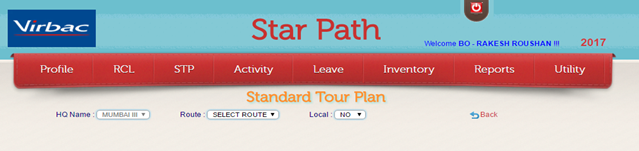
Click
on  button. You will get below screen.
|
|
Shows the HQ name. |
|
|
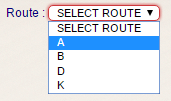
Routes DropDown Includes All the
routes covered in STP. |
|
|
Local dropdown include option
Yes and No |


·
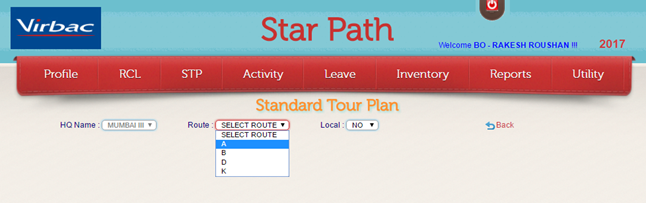
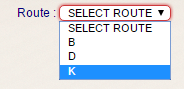
Select Route and Local Option as
shown
·
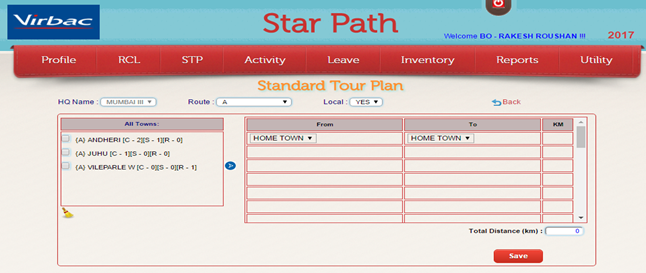
After Selection of route and Local option you will get below screen.
·
Select towns in order you want by
clicking checkbox.
·
If you want change the sequence of
Plan click on  this will refresh all towns and you can select
again.
this will refresh all towns and you can select
again.
·
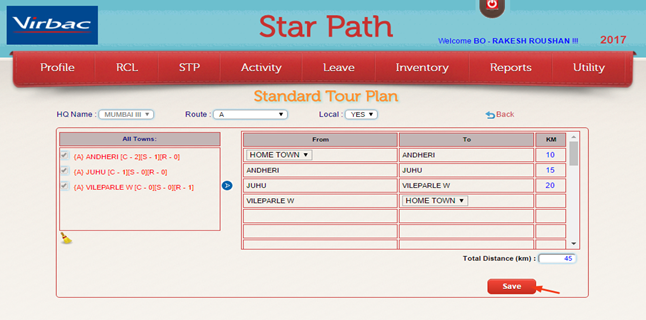
After selection of towns click on  .you will get below screen.

·
Enter Kilometers that will take to travel in KM column .
·
Total distance is automatically calculated.
·
Now click on  button.
·
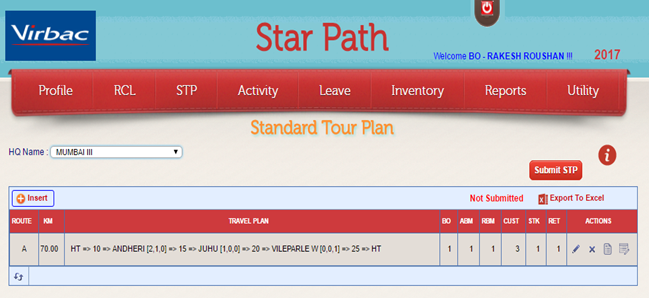
After You click on Save button Plan is Save and you are taken to STP main
page where you can see
Travel plan is Submitted.
·
Same way you have to insert plan for other routes by clicking on  .
.

·
Route which you have already submited
get disapper fron the Route Dropdown
List.
Editing
Standard Tour Plan
·
If you want to Edit
Your Plan for specified Route.
·
Click on  icon.
icon.
·
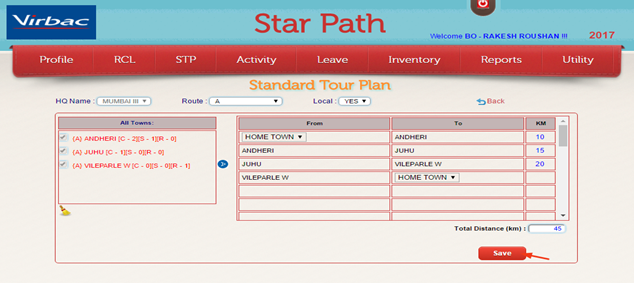
This will take you
back to below screen
·
Edit
plan and click on Save Button .
·
Editing
of Plan is allowed only till STP is not
submitted.
·
Once
STP is submitted user is not allowed to edit plan.
Deleting Standard
Tour Plan
·
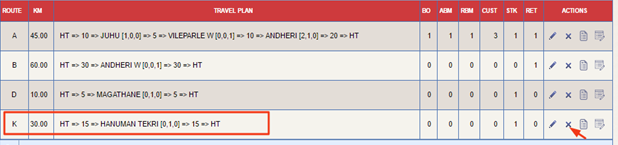
If user want to Delete any Plan he can do that by click on  icon in action column
·
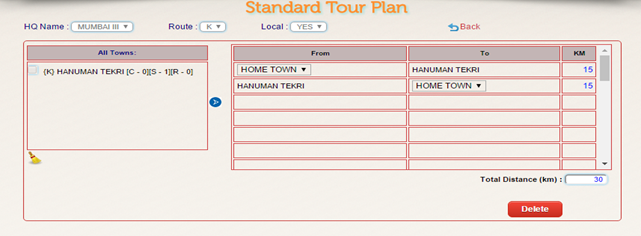
User is redirected to delete plan screen as below:
·
Click on  button.
·
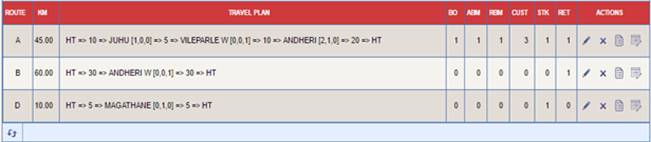
STP for the selected route is deleted and user is redirected to STP main
page where user can check Deleted
Plan is removed from
the stp grid.
·
Deleting
of Plan is allowed only till STP is not
submitted.
·
Once
STP is submitted user is not allowed to Delete plan.
Submitting
Standard Tour Plan
·
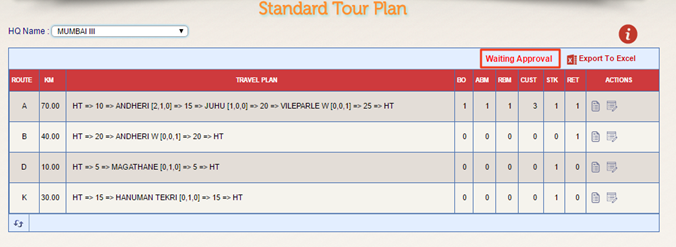
After Inserting Plan for Routes, you get below screen.

·
Click on  Button.
·
Status Changes from Not Submitted to Waiting Approval.
·
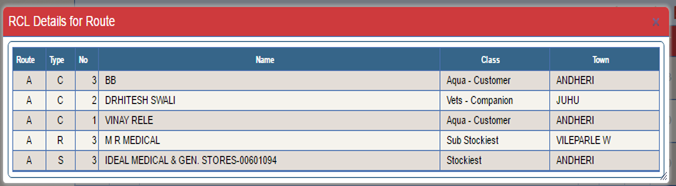
User can check RCL Detail of Selected route by clicking on  icon.
icon.
·
Popup opens showing RCl Details as shown
below:
·
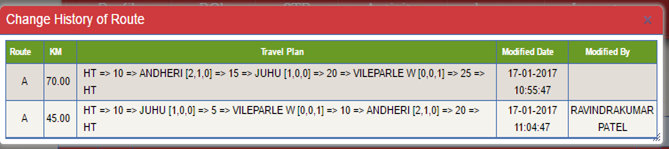
User can also check change history of plan by clicking on  icon from stp grid.
·
After clicking popup open showing change history of Plan for that specific route.
·
This grid shows complete detail of modification done , its date-time ,
name of person who modify it and
Which part of plan
was modified.