ACTIVITY MENU :
EXPENSES : - Monthly register of all the expenses occurred.
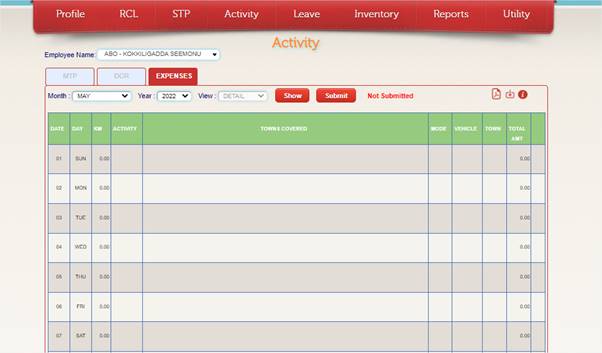
1. Before Submission of Expenses, it is Mandatory to fill up the DCR (Daily Call Report)
2. The expenses can be submitted only for the date where DCR is submitted.
|
|
Year dropdown option shows the year of Star Path version. |
|
|
Month dropdown option shows the Month of Star Path version |
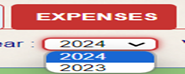
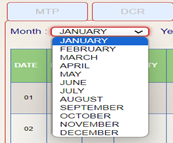
3.After selecting the above options from the dropdown list,
click on  button. The below screen appears. Click on the date
to proceed for Expenses
button. The below screen appears. Click on the date
to proceed for Expenses
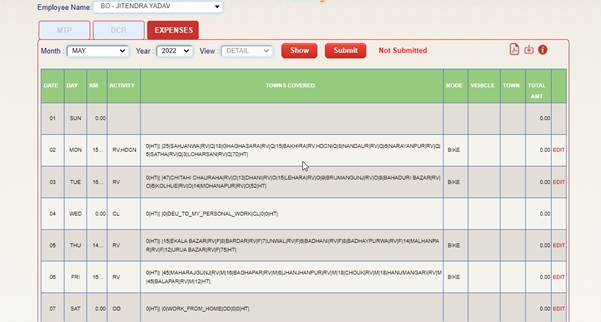
· Inserting Expense for particular date:
Only after submitting DCR for the date, EDIT button is seen beside the particular date.
Click the EDIT button to insert expense.

· In the following screen Date, Employee, Travel Mode, Town and KM’s covered and other details from DCR are seen.
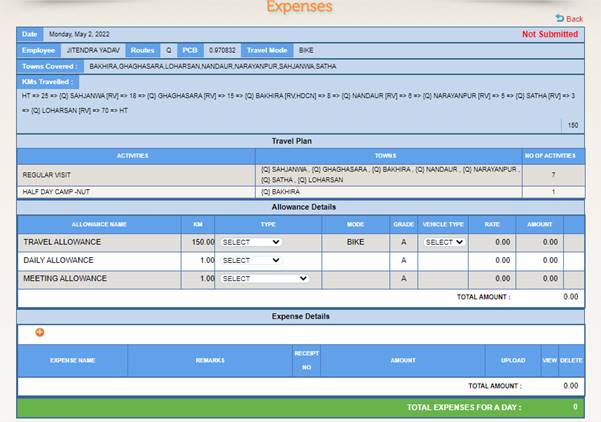
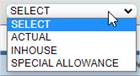
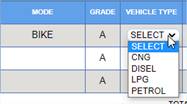
· In the allowance details, Select Travel Allowance Type, Daily Allowance Type, Meeting Allowance Type, Mode of Transport and Vehicle Type.
|
|
Select Type Of Travel Allowance |
|
|
Select type Of Daily Allowance |
|
|
Select Type Of Meeting Allowance |
|
|
Select Vehicle Type
|


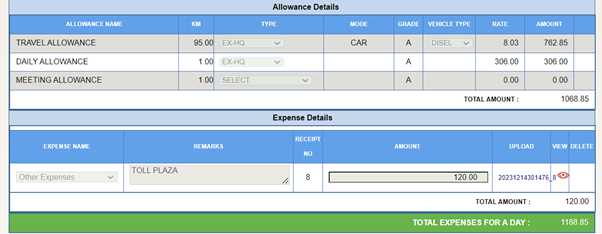
· According to the selected values, the Amount will appear.
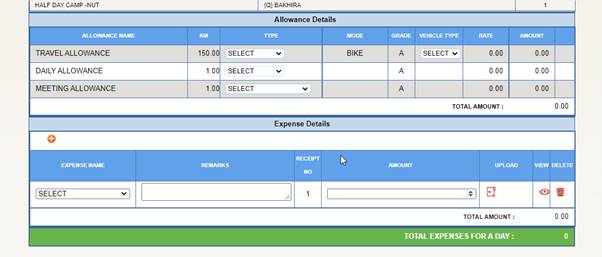
· After selecting the above values, submit the expense Details below by clicking the + button.

· Select the Expense. Add Remarks and the Amount of the expense.
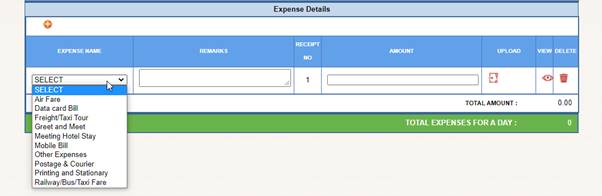
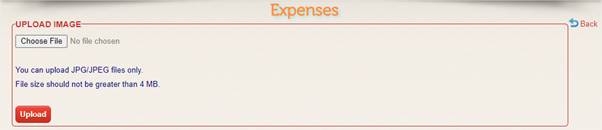
· Click the button below UPLOAD to upload the image of bills expenses.

· Choose the file to upload and click on upload to submit the image of bills.
· Only JPG/JPEG files can be uploaded, any other format won’t be accepted.
· The JPG/JPEG files cannot have special characters in their file names.
· After this the total expenses can be seen here and expense for the day is submitted.
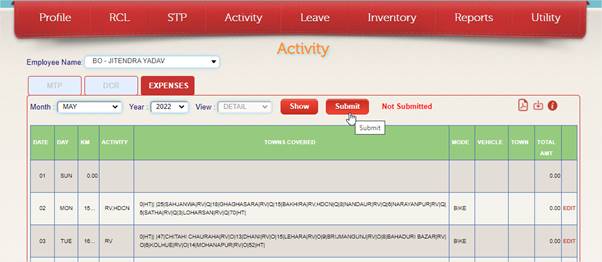
· Once the expenses for entire month have been submitted, click SUBMIT and then the expenses go for the Approval.
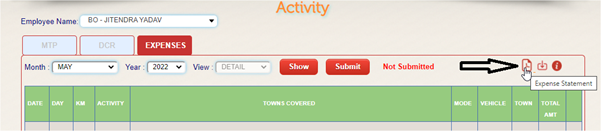
· One can also download the Expense Report in PDF format by clicking this icon as shown below.
· IMPORTANT NOTES !!!
1. You can submit expenses only after submitting DCR for entire month.
2. You can only submit expenses for whole month at once.
3. Manager has to approve after you submit expenses.
4. Vouchers can only be submitted in JPG. Please note that the JPG file name shouldn’t include special characters.